
Unbox and place
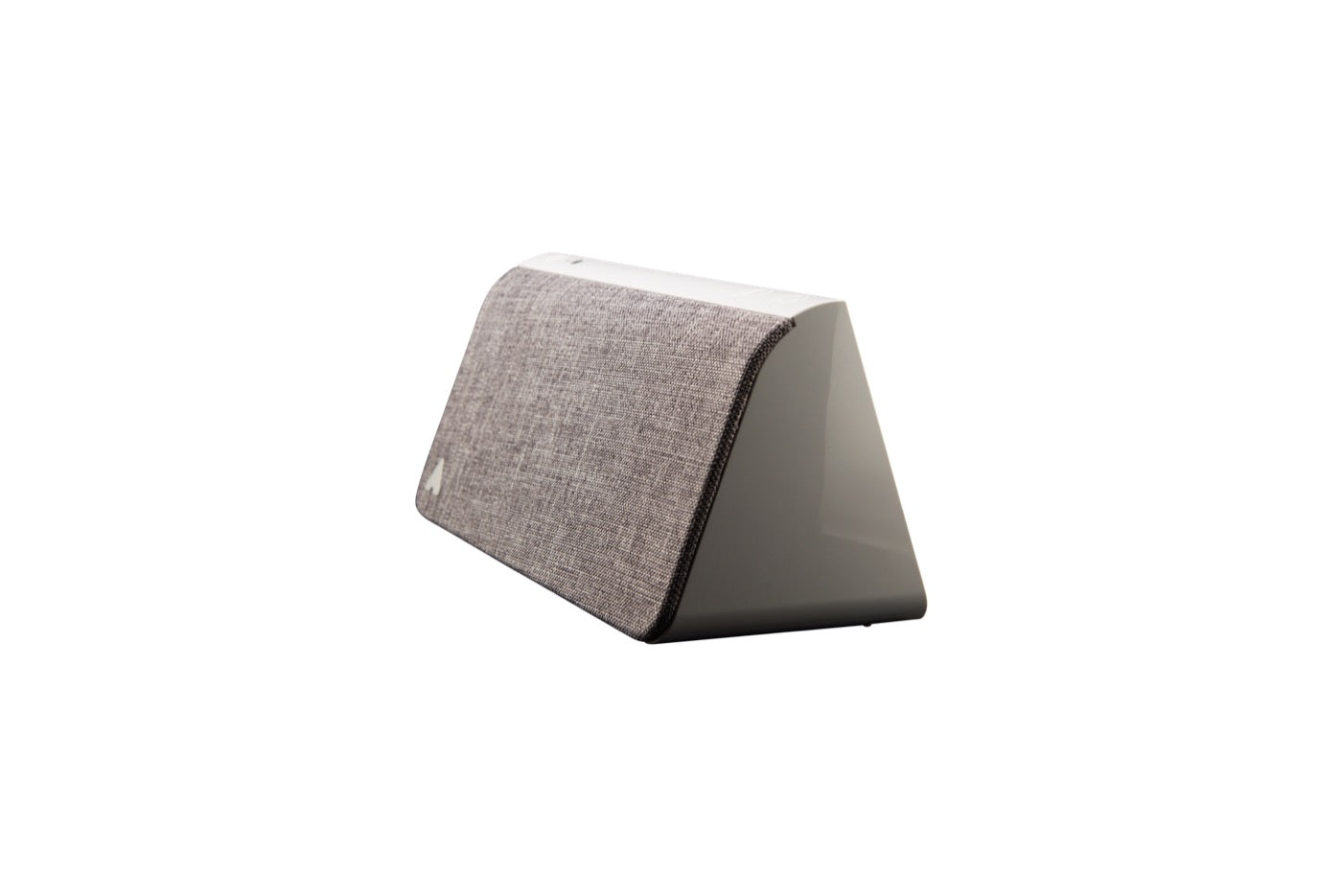
Put Kevin near a window that can be seen from the street, with a wall or ceiling behind it for the shadows. Connect the power adapter.
Setup guide
For new owners: where to place Kevin, how to pair the app once, and how to see what a passer-by sees after dark. No tools, no wiring.
Quick start
Placement makes the biggest difference. Take a minute to get the window right before you pair the app.
Put Kevin near a window that can be seen from the street, with a wall or ceiling behind it for the shadows. Connect the power adapter.
Download the Kevin app for iOS or Android and connect over Wi-Fi or Bluetooth. Name your device and let it install the latest update.
Start a simulation right away, set a weekly schedule, or switch on geofencing so Kevin starts when you leave. The three buttons on the device also start a scene without the app.
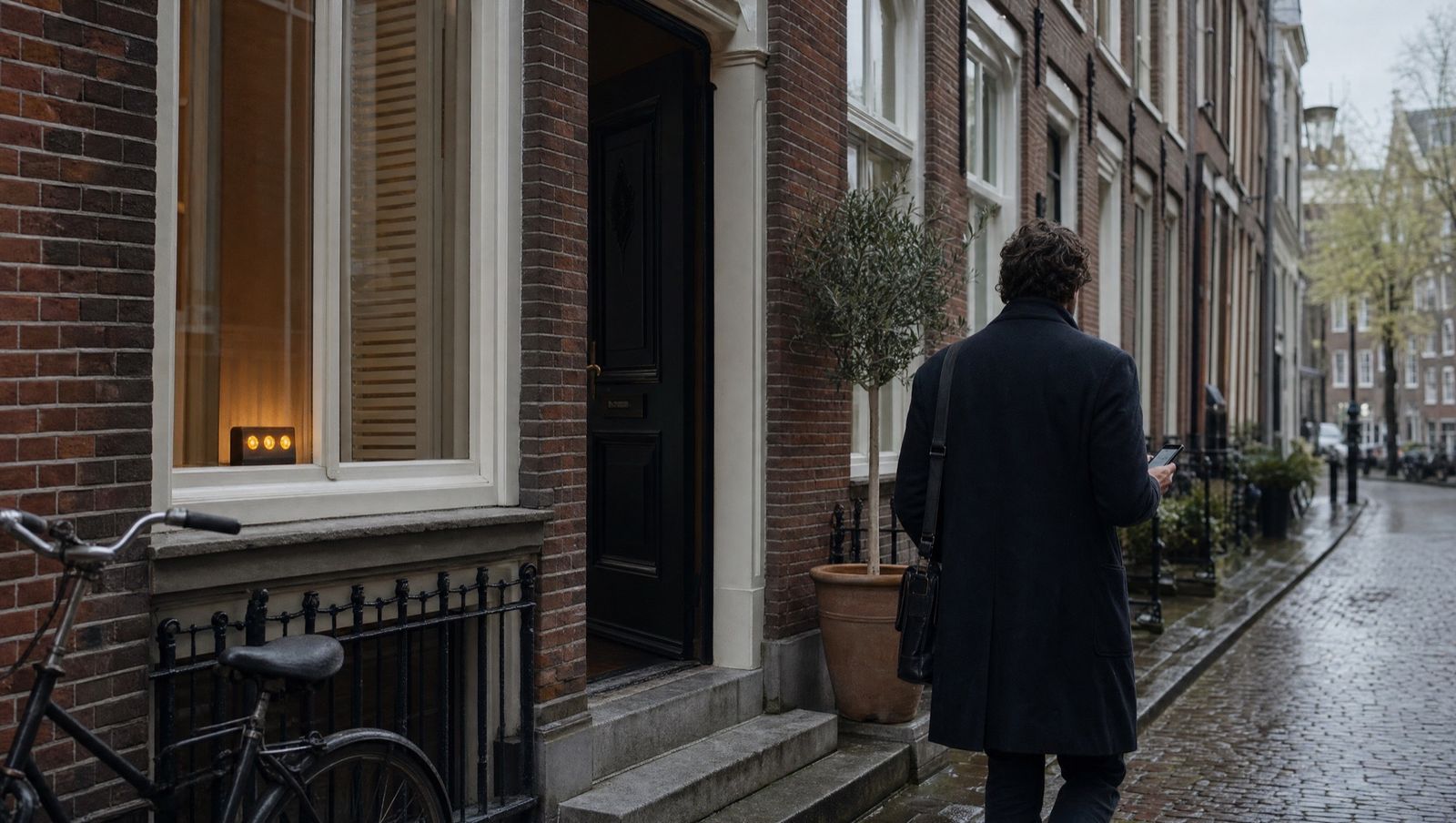
After dark, step onto the pavement and look at your window. You should see warm, changing light and moving shadows, and hear the room when you get close to the door.
Placement
Kevin covers one room. Choose the window a burglar would check first: the living room, the ground floor, the side facing the street.
Shadows need a wall or ceiling to land on and curtains or blinds to show through. Sheer curtains work best; heavy blackout curtains hide the effect.
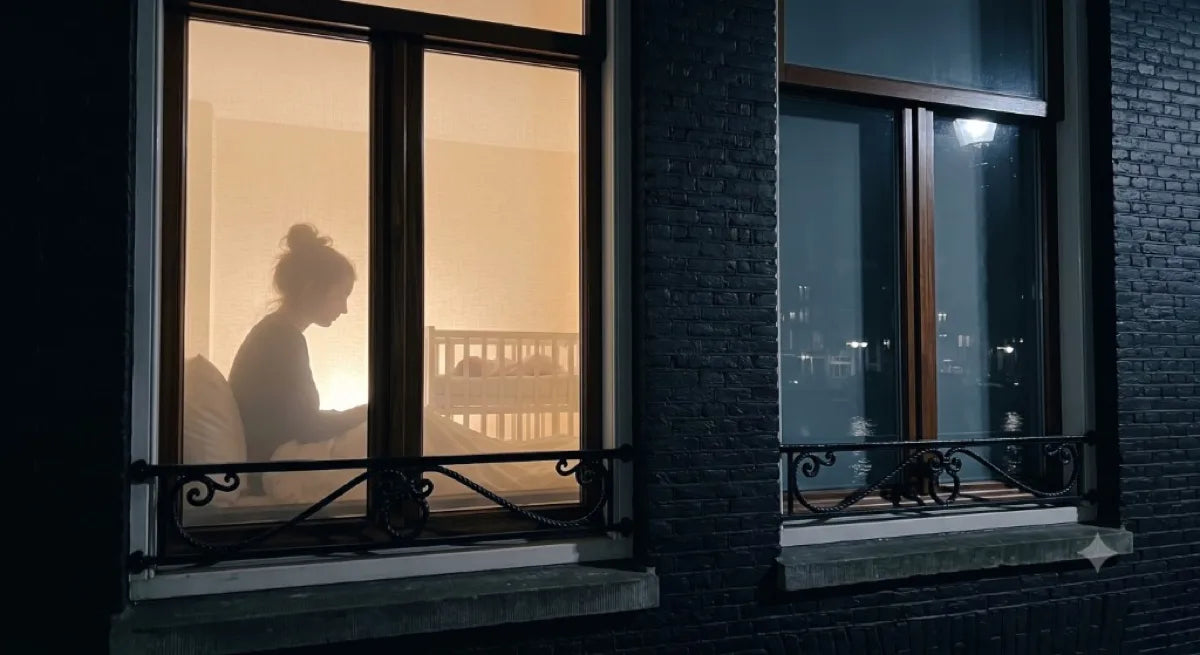
For daily use, geofencing is the routine that needs no remembering: Kevin starts when your phone leaves the area and stops when you are back. Use schedules for holidays and for a home you manage from afar.
First-day questions
Answers to what new owners ask most.
No. Wi-Fi or Bluetooth is only used to set up Kevin and install updates. Scenes play from the 32 GB inside the device, so Kevin keeps working when the network is down or jammed.
Yes. Record familiar household sounds in the app and Kevin mixes them into its scenes. Built-in voices are in English, German and Swiss German.
Note the serial number on the bottom of the device and email us. Kevin comes with a 3-year Swiss warranty and 30-day returns.
Kevin includes a 3-year Swiss warranty and 30-day returns. If your device stops working, contact us with the serial number and a short description, and we will arrange repair or replacement.
Send us a photo of the room and we will tell you where Kevin works best.